
Else — Reading Browser
Keep what you want to read.
Open links in Else and save the articles worth reading in one tap. Your place and highlights pick up where you left off.
Safari stays as it is. Free, no sign-up · Devices and details
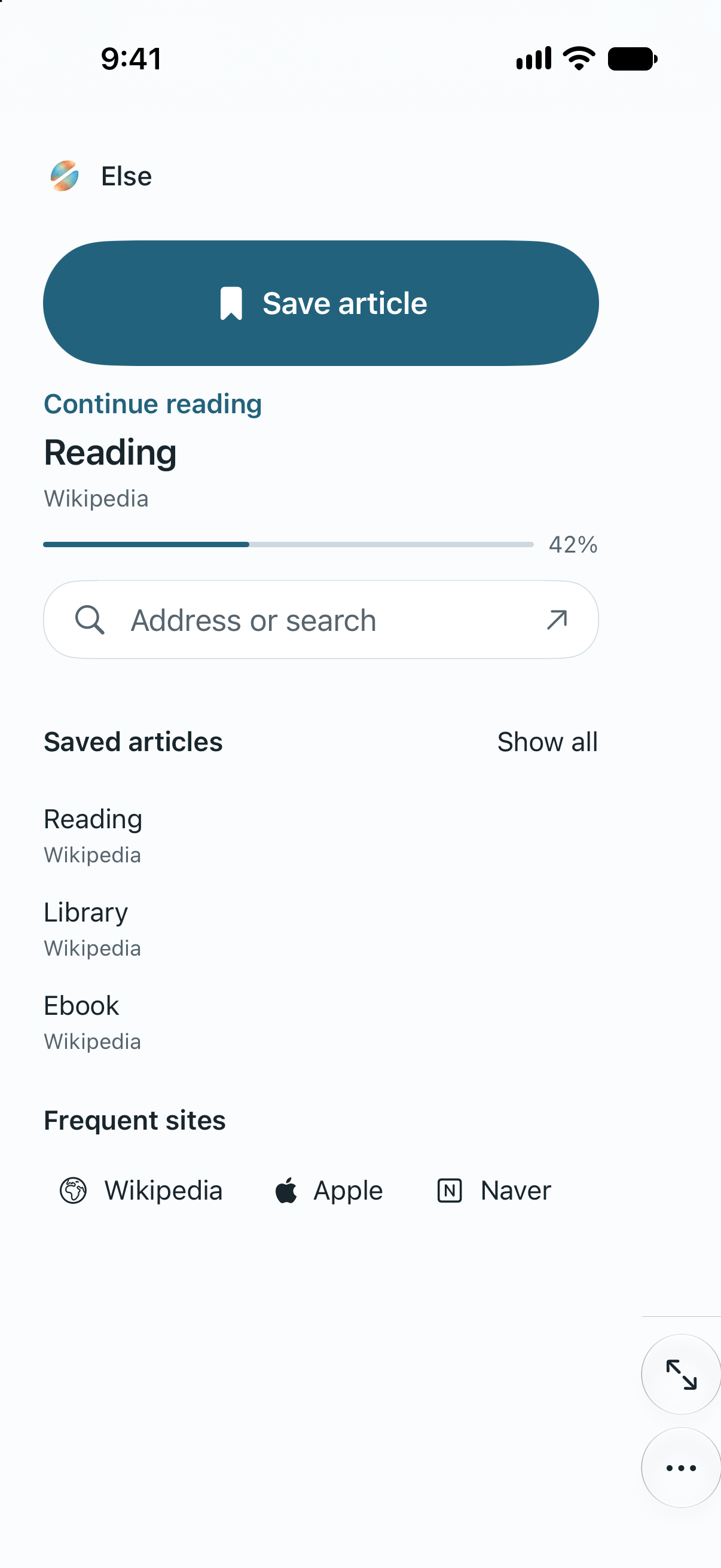
Don’t reach for the Share button just to save a link. Unlike Pocket or Instapaper, Else is where your links open first — your default browser. No sign-up, no subscription: keep only what you’ll read, and tabs never pile up.
01 · CONTINUE READING
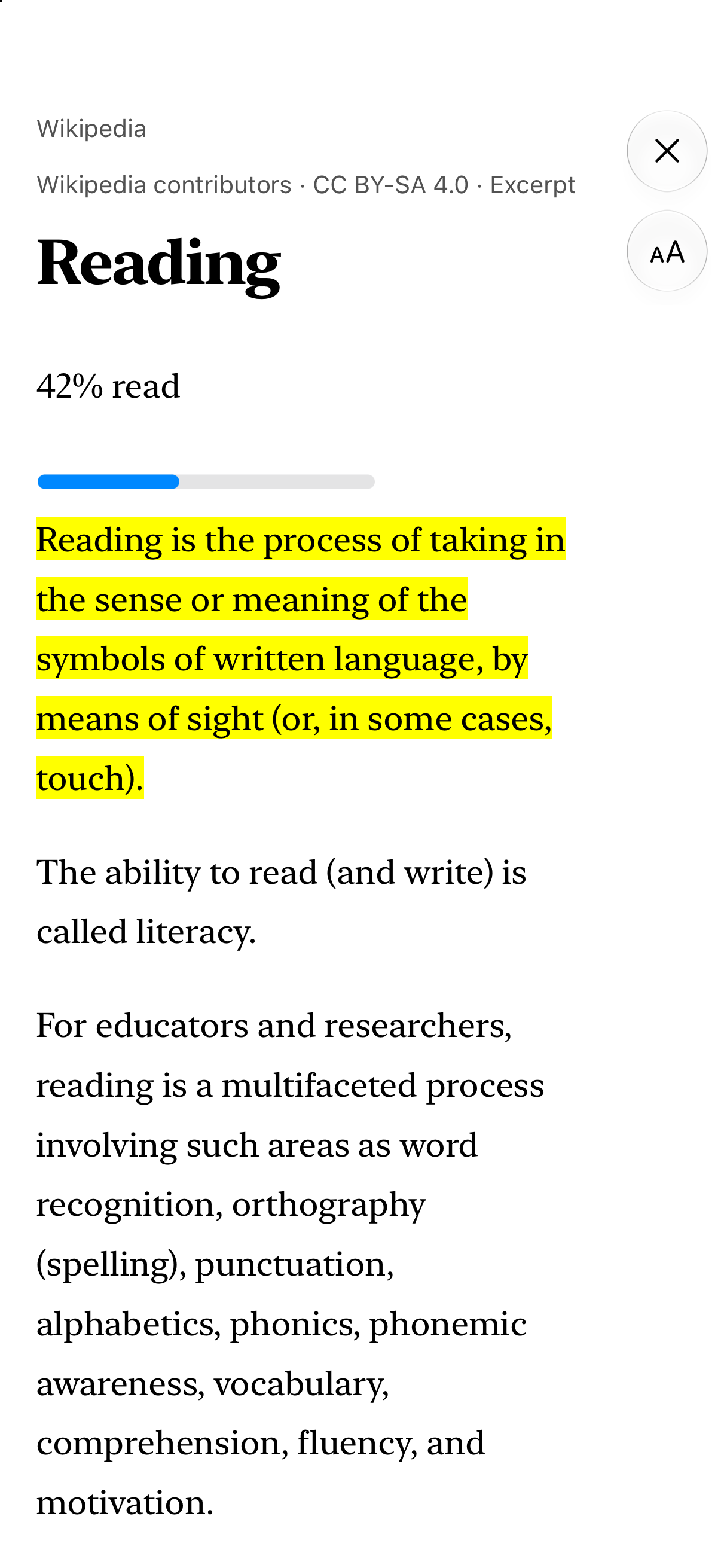
Reopen an article right where you left off
Return to an unfinished article and keep reading from your last spot. Highlight the sentences that matter and add your own notes.
02 · BACK TO THE SOURCE
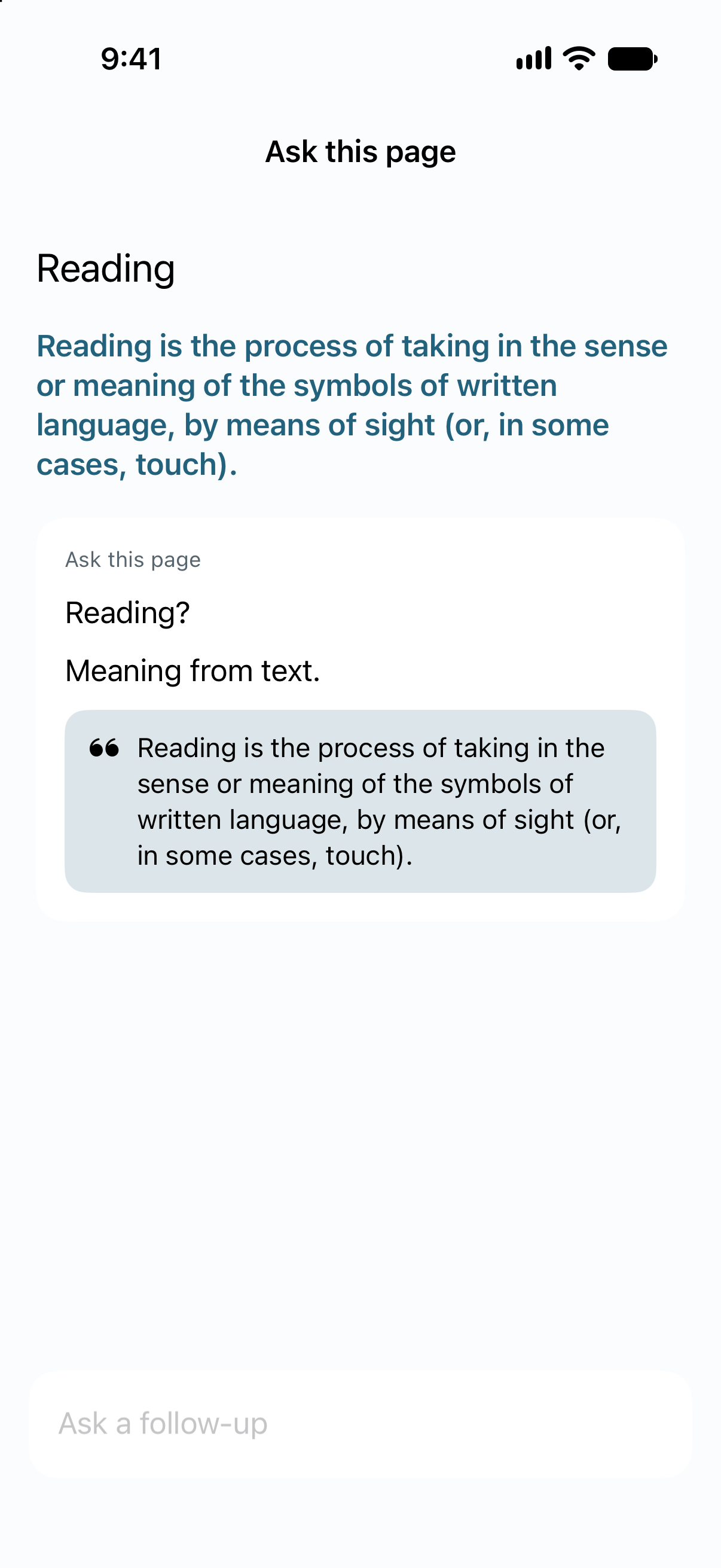
Tap a cited sentence to jump straight to that line in the article
Ask a question, then check the sentence behind the answer. Move between the answer and the original text to follow the full context.
03 · YOUR NEXT READ
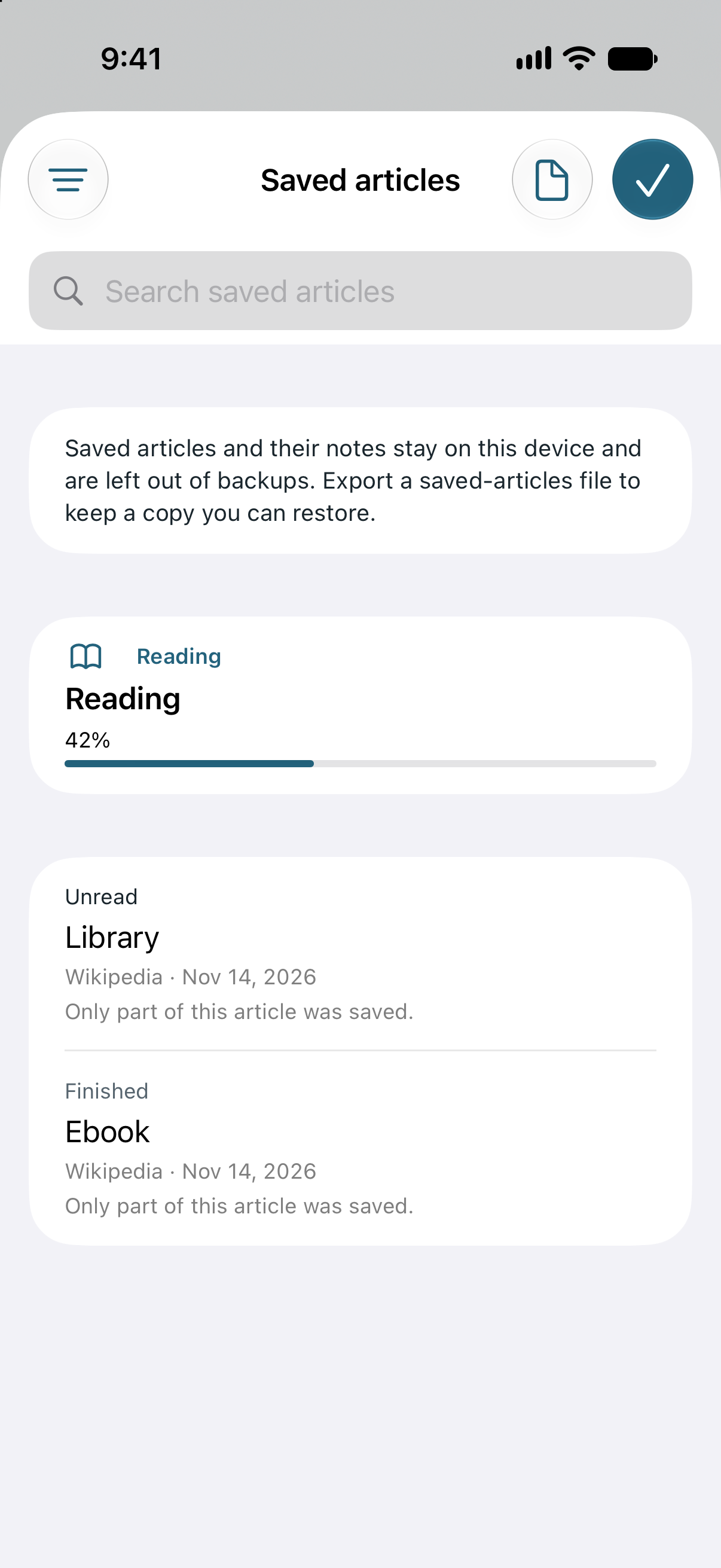
Keep your articles sorted into Reading, Unread, and Finished
Find the article you want to finish and the ones you have yet to open. Saved articles organized by reading status make your next read easy to choose.
04 · YOUR SAVED ARTICLES
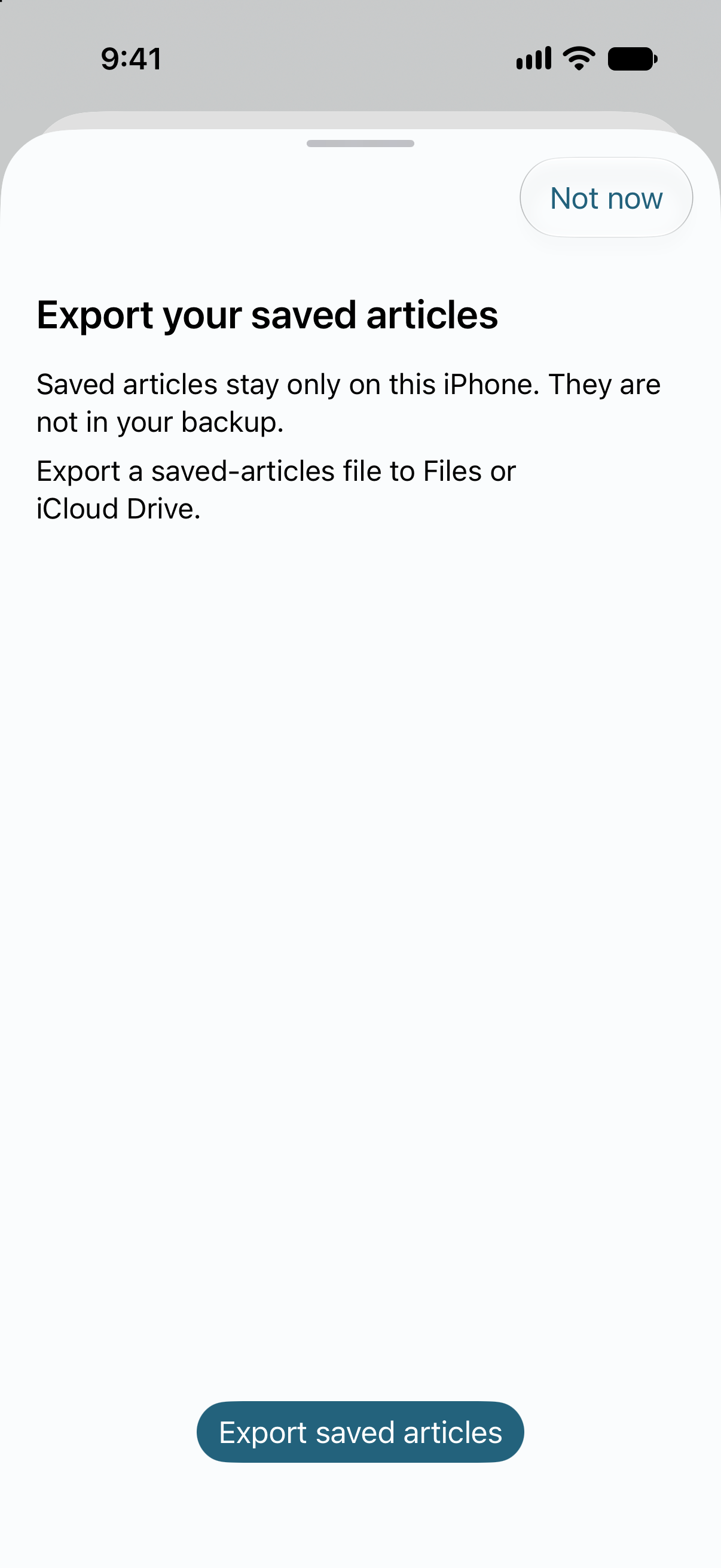
Restore your saved articles anytime with one exported file
Keep your articles together with their highlights, notes, and reading positions. Save a saved-articles file so you can pick up again after reinstalling.
Make Else your browser
Let Else handle your reading and tab clearing. Links from other apps open in Else; tap Save article to keep what you want to read. Safari stays as it is.
- Open Settings.
- Go to Apps → Else → Default Browser App.
- Choose Else.
Questions
Can I install it now?
Download Else for free from the App Store. Else needs iOS 26 or later. You can use Else alongside your usual browser.
Does it cost money?
It’s free. No sign-up, subscription, or advertising. Saving, highlights, notes, your place, and the saved-articles file stay available.
How do I back up and restore my saved articles?
Export a saved-articles file from Saved articles to Files or iCloud Drive. It holds the article text, partial-save labels, highlights, notes, and reading positions. Cover images are excluded. Else offers an export reminder after every three newly saved articles.
Your saved articles stay on this device, without automatic device sync or inclusion in the system backup. Keep an exported file before deleting the app. After reinstalling, restore it from the Saved articles screen. Articles that already have text are left as they are.
Can I save pages that require a login?
Sign-in screens are not saved as article text. Save once the article is visible.
Does Else sync with iCloud?
When enabled, bookmarks, collections, and your regular tab list sync to your iCloud. Saved articles stay on this device, so export a file from Saved articles to keep a copy. Private tabs, cookies, and passwords do not sync.
Which devices support page questions?
Page questions are available on devices that support Apple Intelligence (iPhone 15 Pro and later, and iPad with M1 or later or A17 Pro), running iOS 27.1 or later. Saving, highlights, notes, and reading positions still work on other devices. If the article has no supporting sentence, Else says so.
Keep your next read in Else.
Download Else for free from the App Store and get started with a default browser that keeps only what you want to read.